ClubTab logo

ClubTab – Help & Guide

How to run your club's hospitality with ClubTab: start a session, add guests & orders, settle up, track expenses & the debt book, and review your figures. All screenshots are from the app (example data, US dollars).

1Getting started (setup)

On first launch you set a 4-digit admin PIN. It is your master PIN: use it to reset forgotten co-admin PINs and change protected settings.
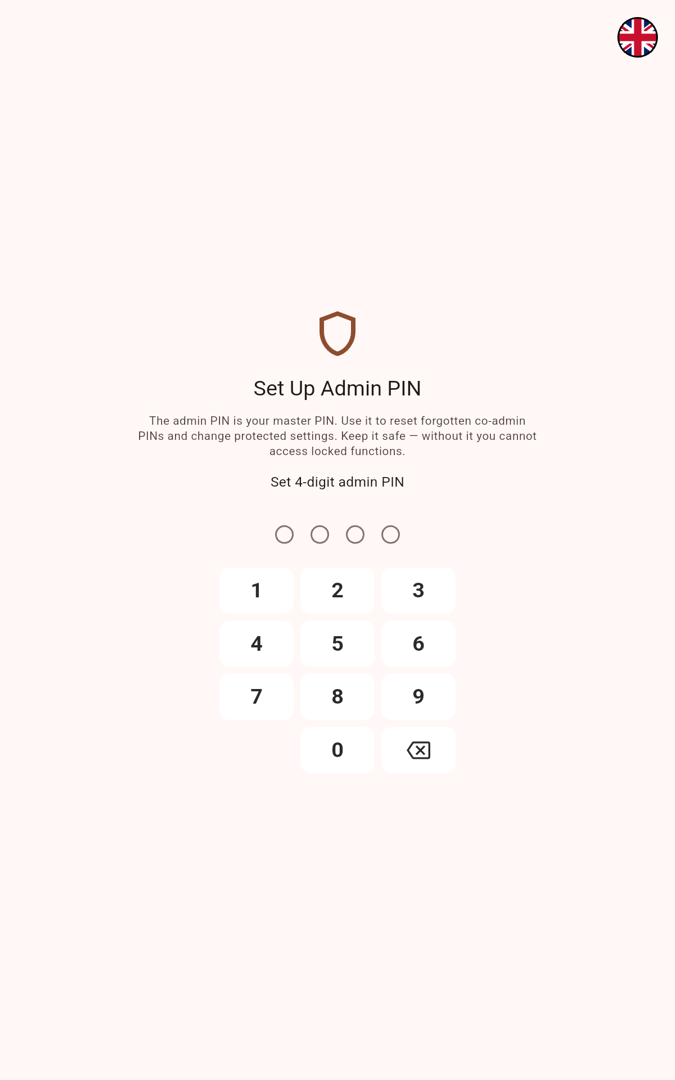
  • Enter the admin PIN twice (set & confirm).
  • Pick your language via the flag at the top right.
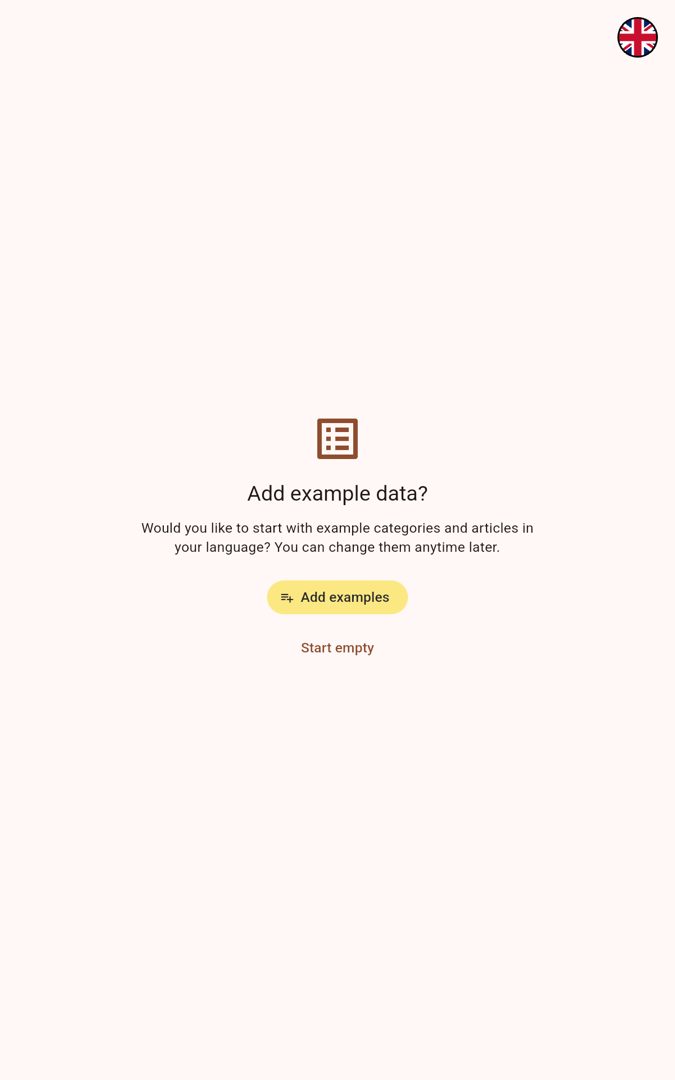
  • Then tap Add examples for example categories and items in your language – or Start empty.
Good to know: the example data (e.g. Drinks, Beer 0.3 l) can be changed or removed anytime in Settings.
Set up admin PIN
Set up admin PIN
Add example data
Example data

2Home screen

The home screen is your hub for every area:
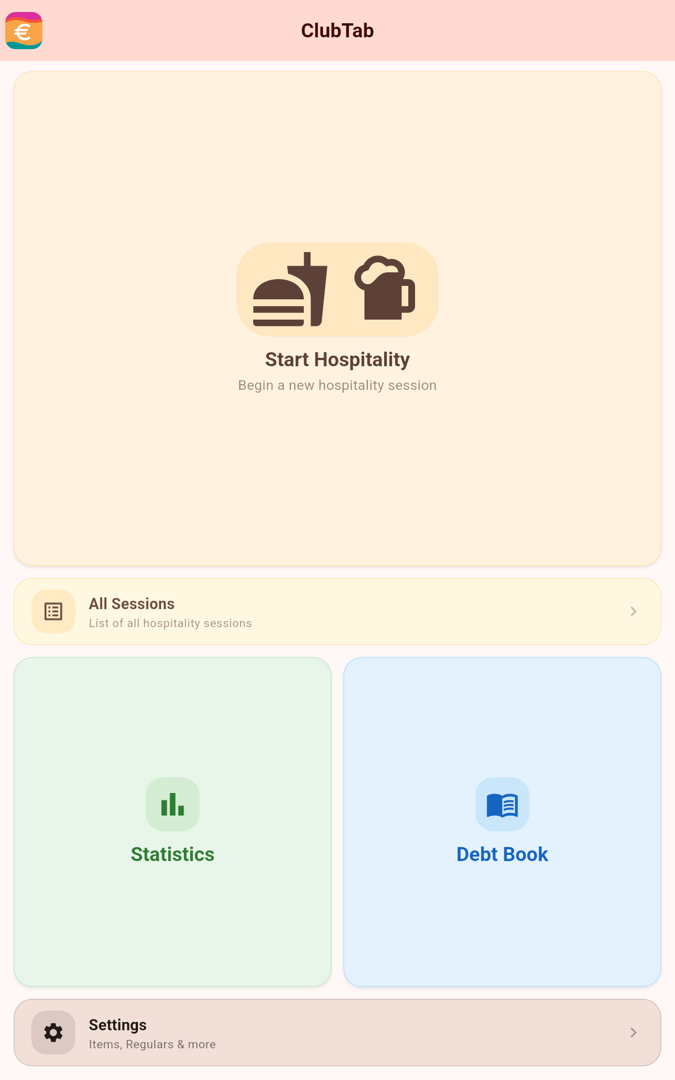
  • Start Hospitality – begin a new session.
  • All Sessions – past and current sessions.
  • Statistics – revenue and analysis.
  • Debt Book – guests' open amounts.
  • Settings – items, regulars & more.
Home screen
Home screen

3Start a session

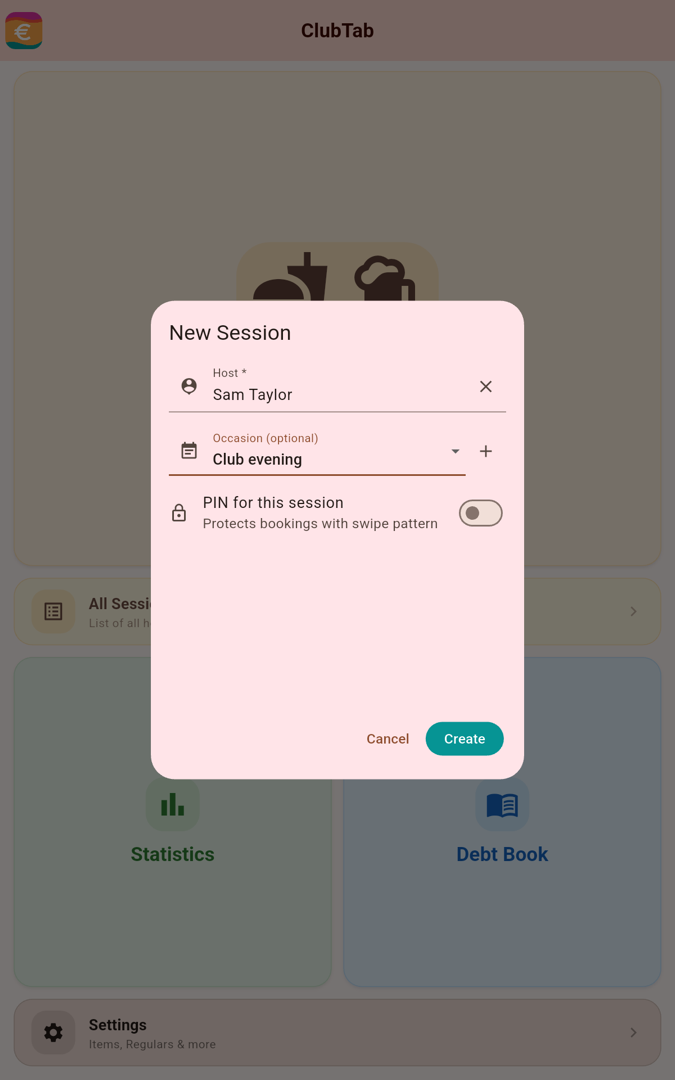
Tap Start Hospitality and fill in:

  • Host (required) – who runs the evening. Configured names appear as suggestions.
  • Occasion (optional) – e.g. Club evening; add a new one via +.
  • PIN for this session (optional) – protects the session with a swipe pattern.

Tap Create to open the overview.

Good to know: the occasion is optional – without one, the session is simply tracked by its date.
New session
New session

4Overview & guests

The overview shows Total Revenue at the top (plus Expenses and Net once expenses are recorded). Guests are grouped into Open and Paid.
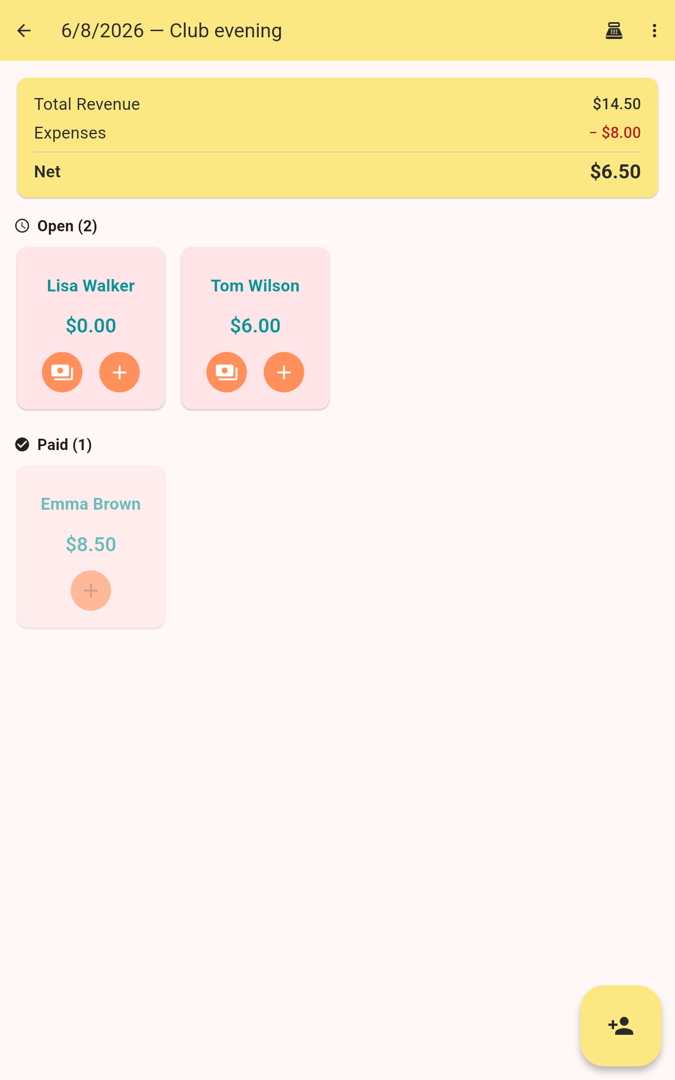
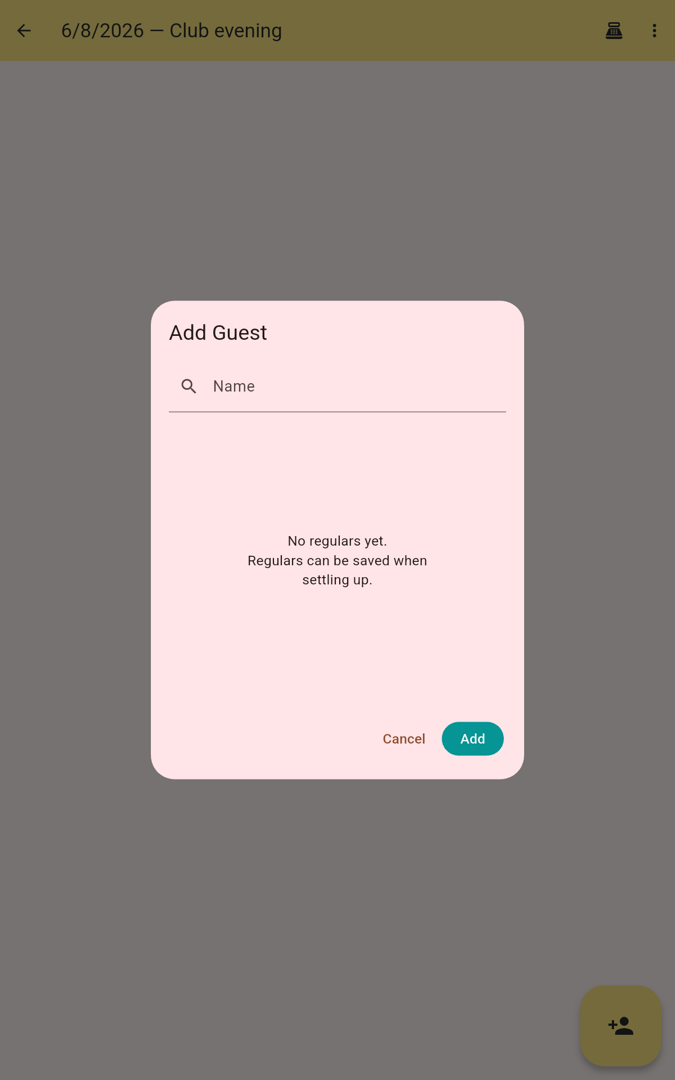
  • Add a guest with the button at the bottom right (Add Guest) – type freely or pick a regular.
  • On a guest tile: Settle Up (banknote icon) or Order (+).
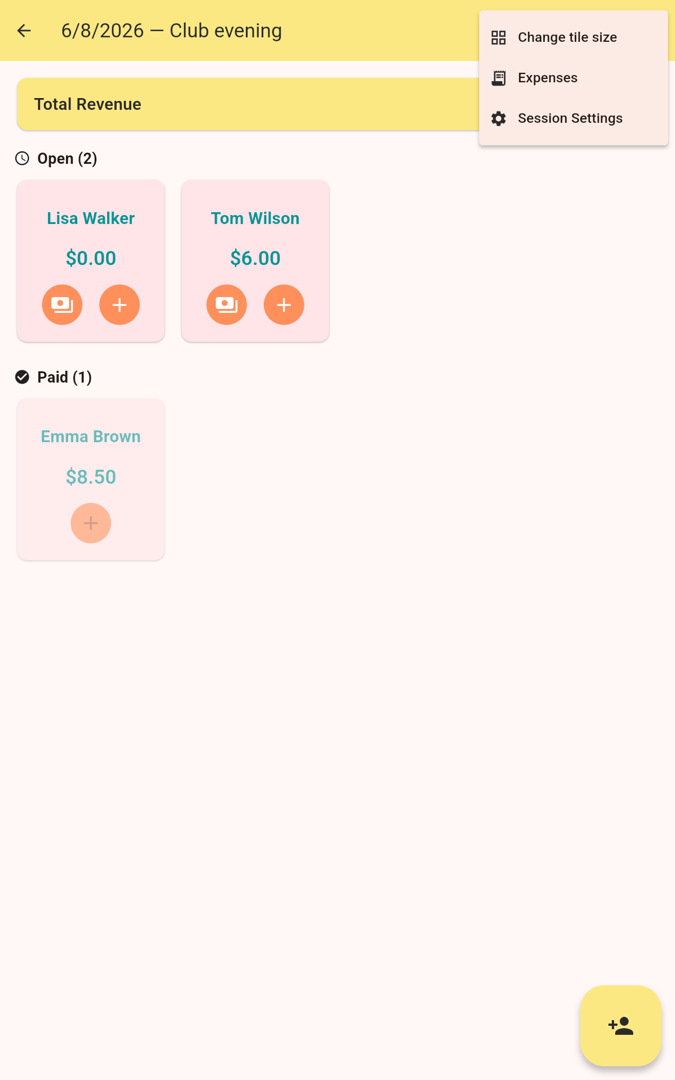
  • The menu (top right) holds Change tile size, Expenses and Session Settings.
Overview with guests
Overview (with Net)
Top-right menu
⋮ menu
Add guest
Add guest

5Take an order

Tap the + button on a guest tile. Pick the category on the left (e.g. Drinks/Food) and the items on the right.
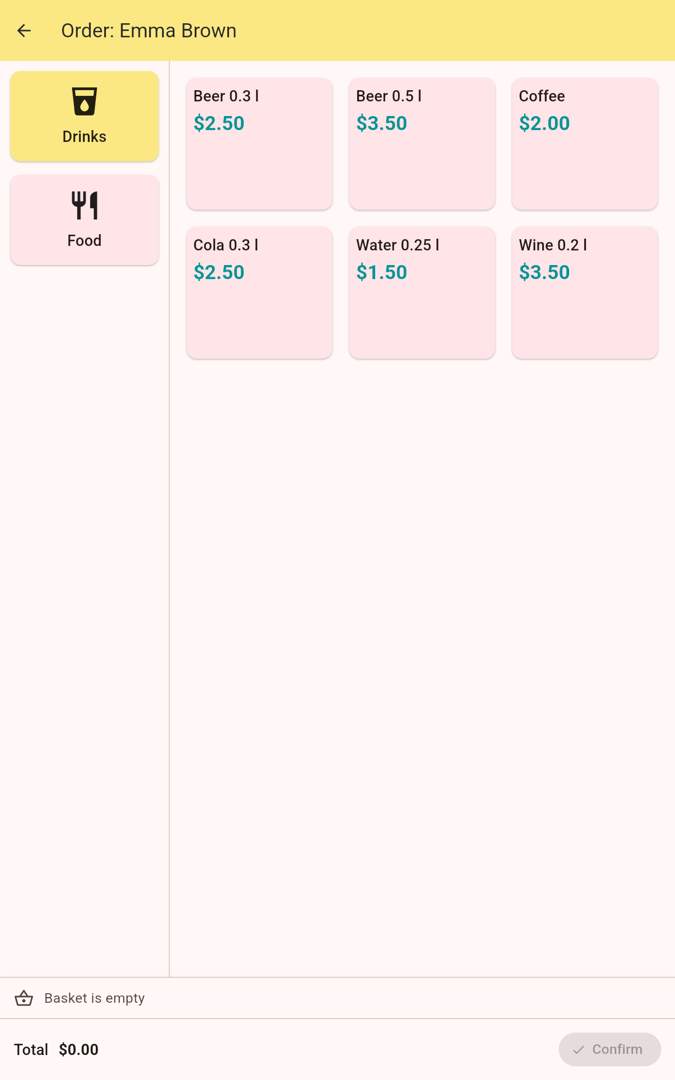
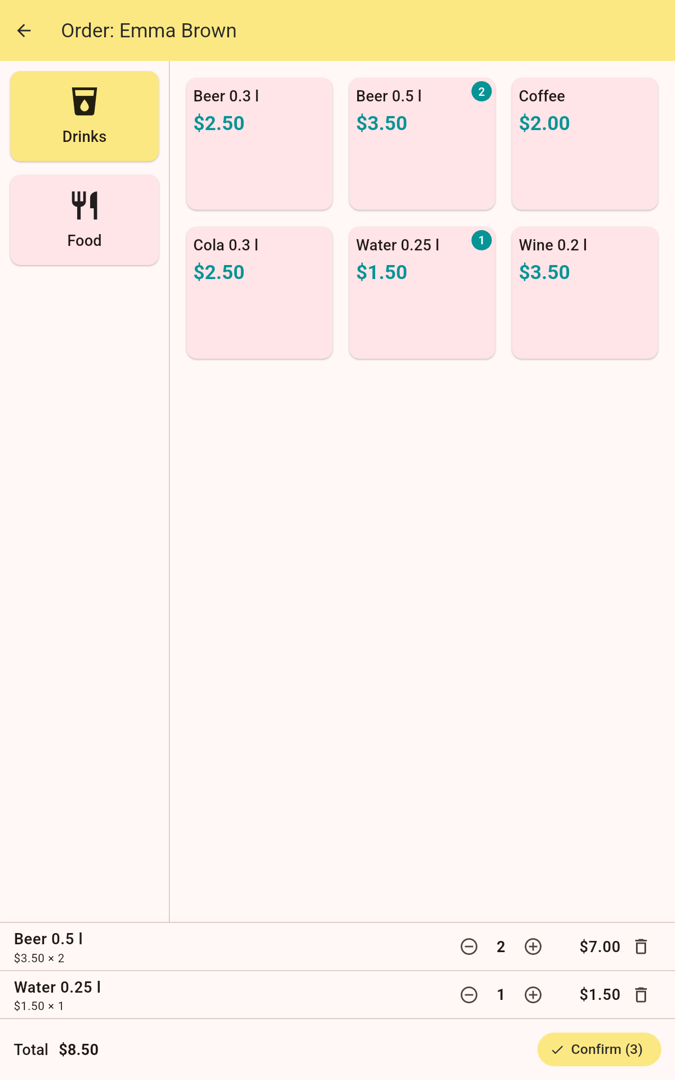
  • Tap an item – the quantity shows as a badge.
  • The basket at the bottom collects quantities (/+) and the total.
  • Tap Confirm to book the order.
Item selection
Category & items
Filled basket
Basket with total

6Settle a guest

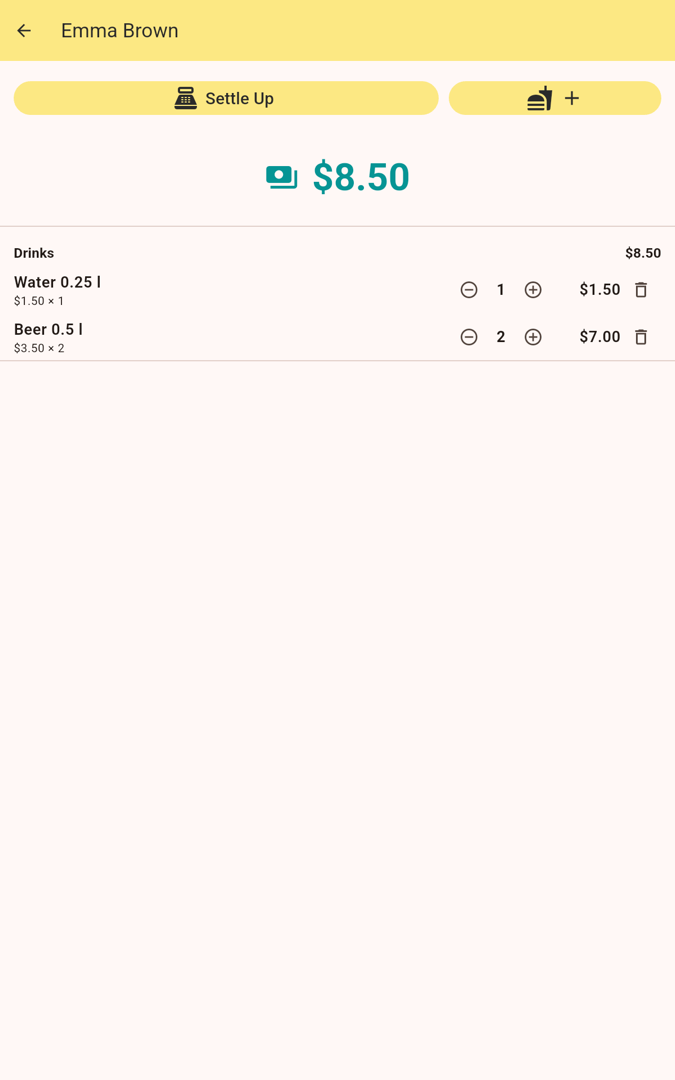
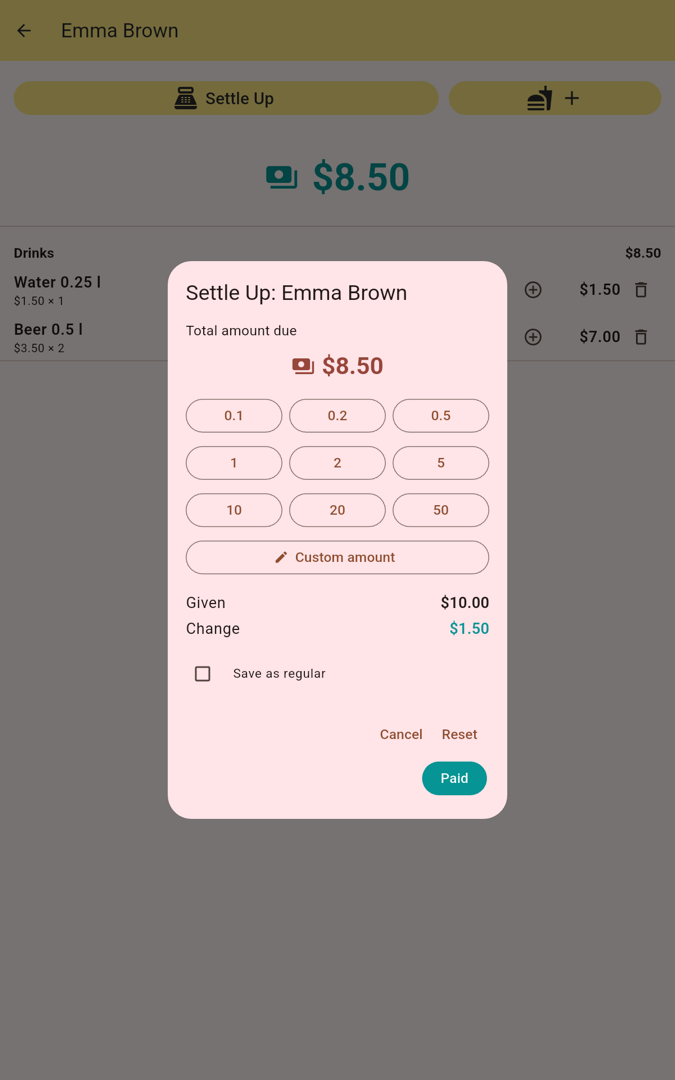
Tap the banknote icon on the tile, or Settle Up in the guest detail. The detail lists all items and the total.

  • Record the amount given via the denomination grid (0.1, 0.2, 0.5, 1, 2, 5 …) or Custom amount.
  • Change is calculated automatically.
  • Optionally Save as regular, then Paid.

The guest moves to the Paid section.
Guest detail
Guest detail
Settle up
Settle up (change)

7Record expenses

Via the menu → Expenses you record host costs, e.g. restocking. Each expense has a description and an amount.
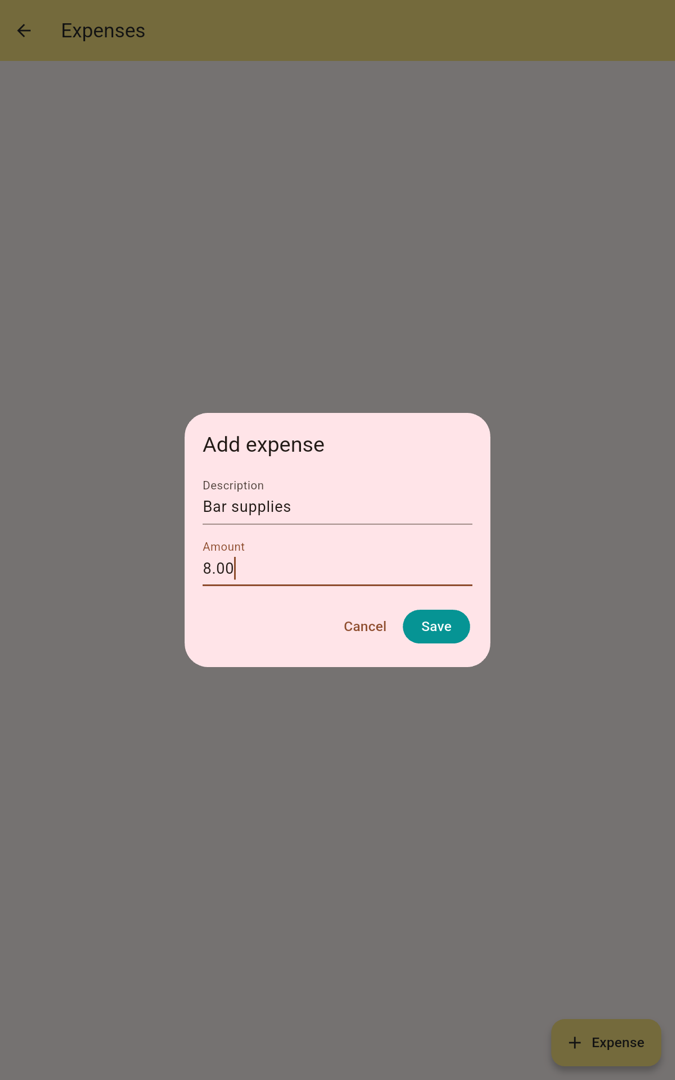
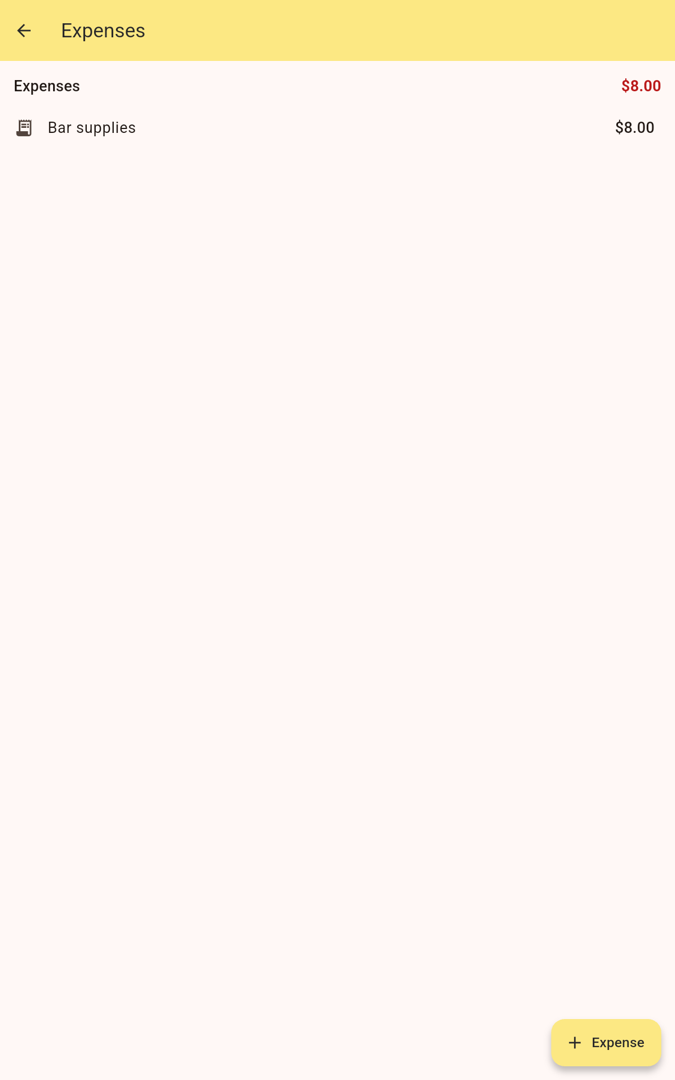
  • Add a line with Expense (bottom right).
  • Expenses are offset on the overview as Net = Revenue − Expenses.
Good to know: expenses reduce the net result and also appear in the session PDF and the statistics.
Add expense
Add expense
Expenses list
Expenses list

8Close a session & PDF

Tap the register icon at the top right → Close Session. You get a summary: guests (paid/open), Revenue, Expenses and Net.
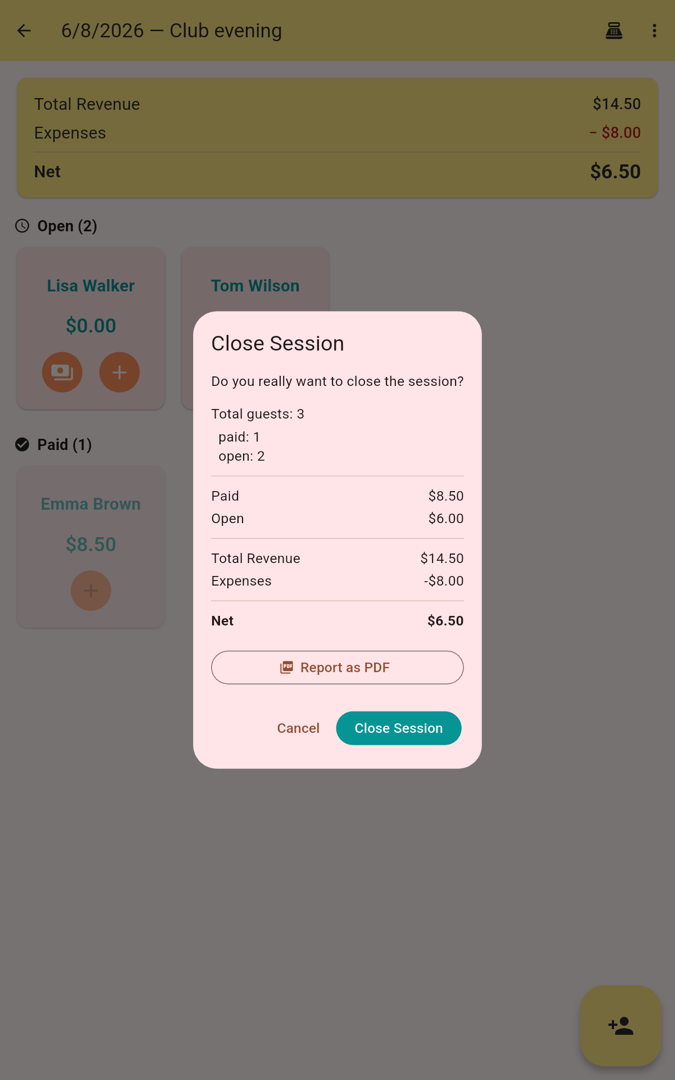
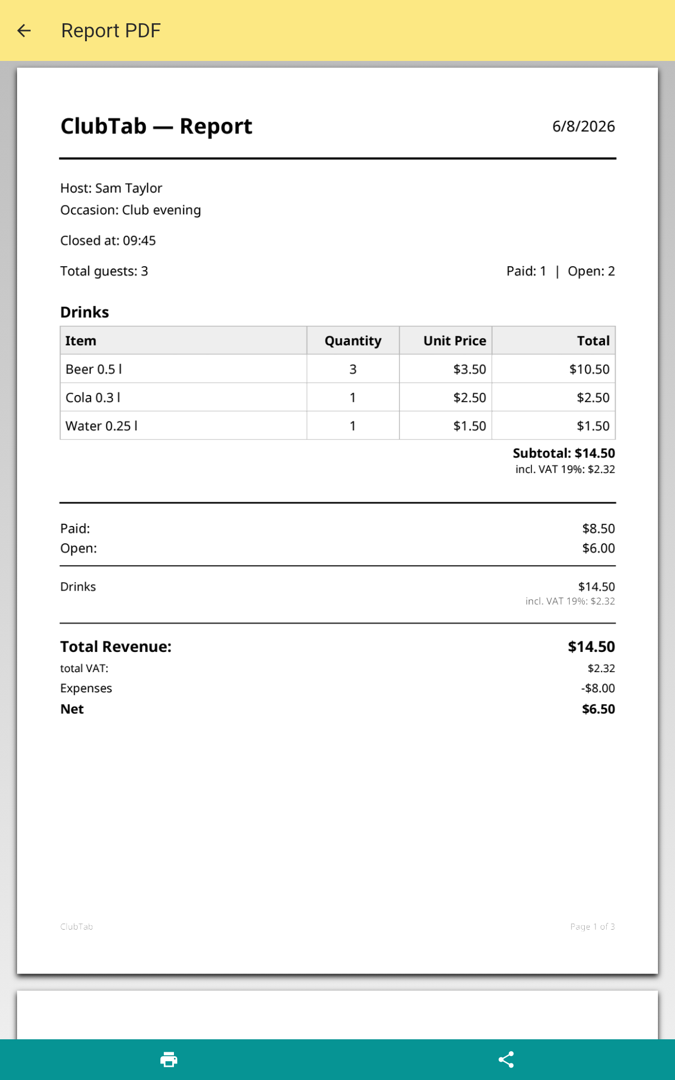
  • Report as PDF creates the session report (with VAT, close time and net).
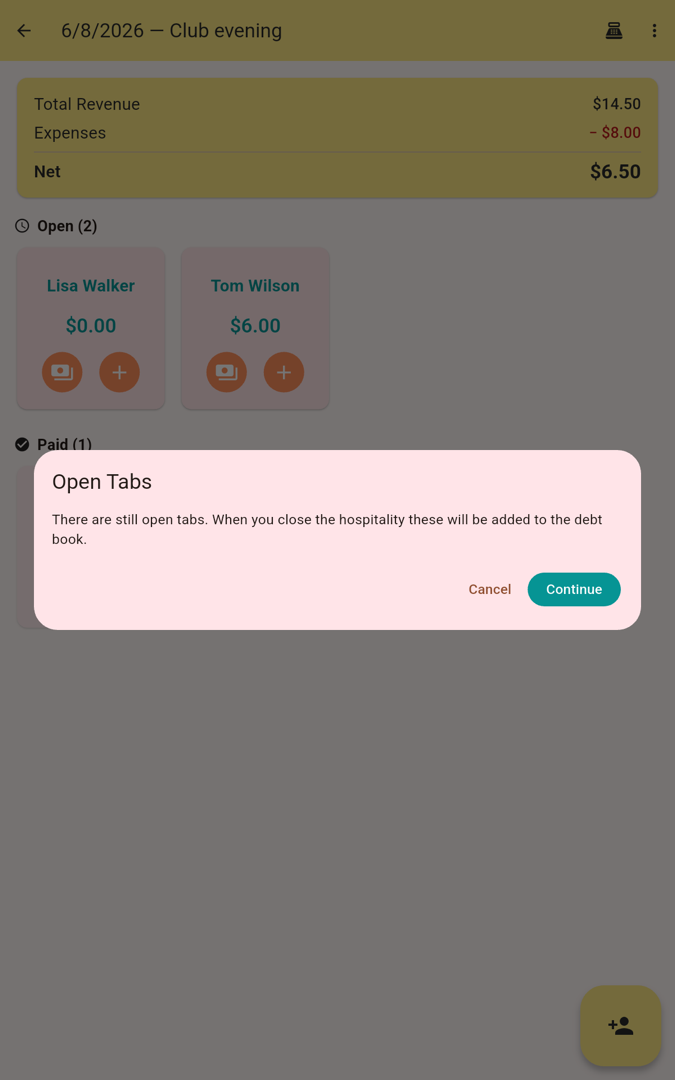
  • Any open tabs are moved into the Debt Book when you close.
Good to know: if the PDF contains open debt-book entries (names & amounts), a privacy notice appears – share the PDF internally only.
Close session
Close dialog
Session PDF
Session PDF
Open tabs notice
Open tabs

9All sessions

Under All Sessions you find every session – grouped by month and searchable (by date, occasion or host).
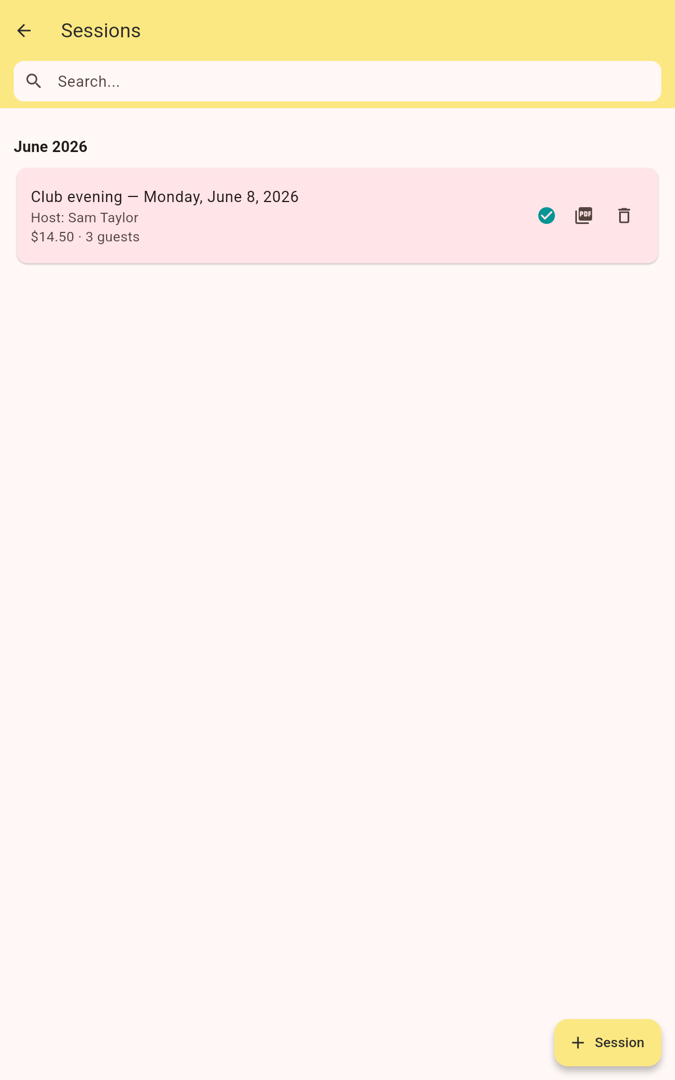
  • Tapping opens the session (closed ones are shown read-only).
  • Per row: re-create the PDF or delete the session.
Sessions list
Sessions list

10Debt book

The debt book collects all open amounts per person across all sessions.
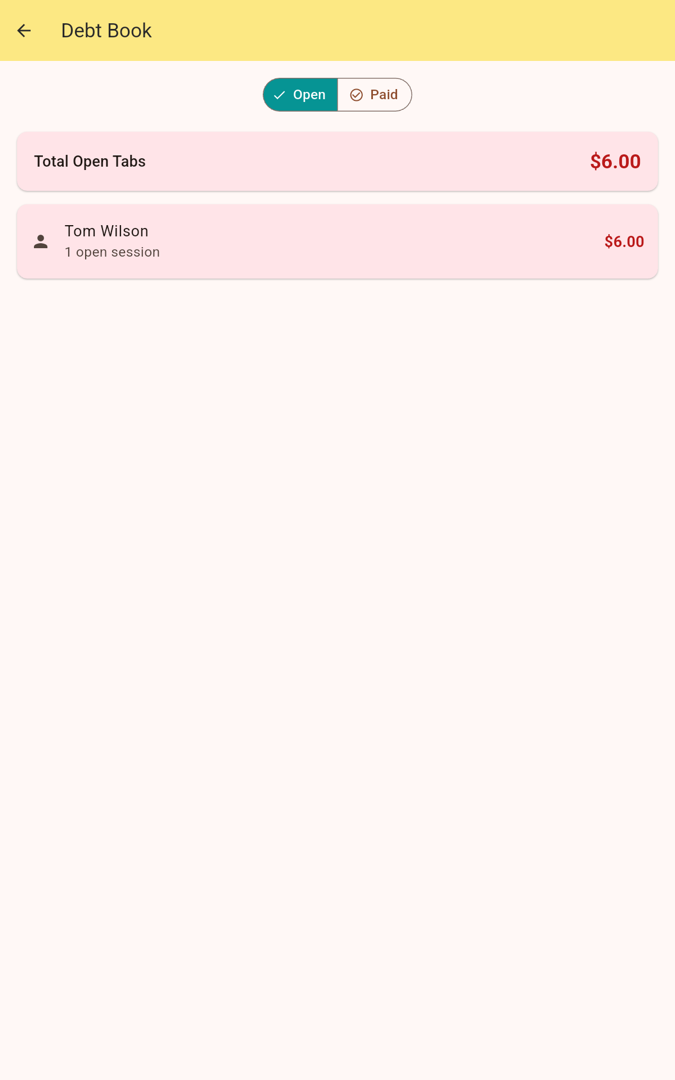
  • Switch the Open / Paid tabs at the top.
  • The total Total Open Tabs is shown at the top.
  • On payment, open the entry and mark it paid.
Debt book
Debt book

11Statistics

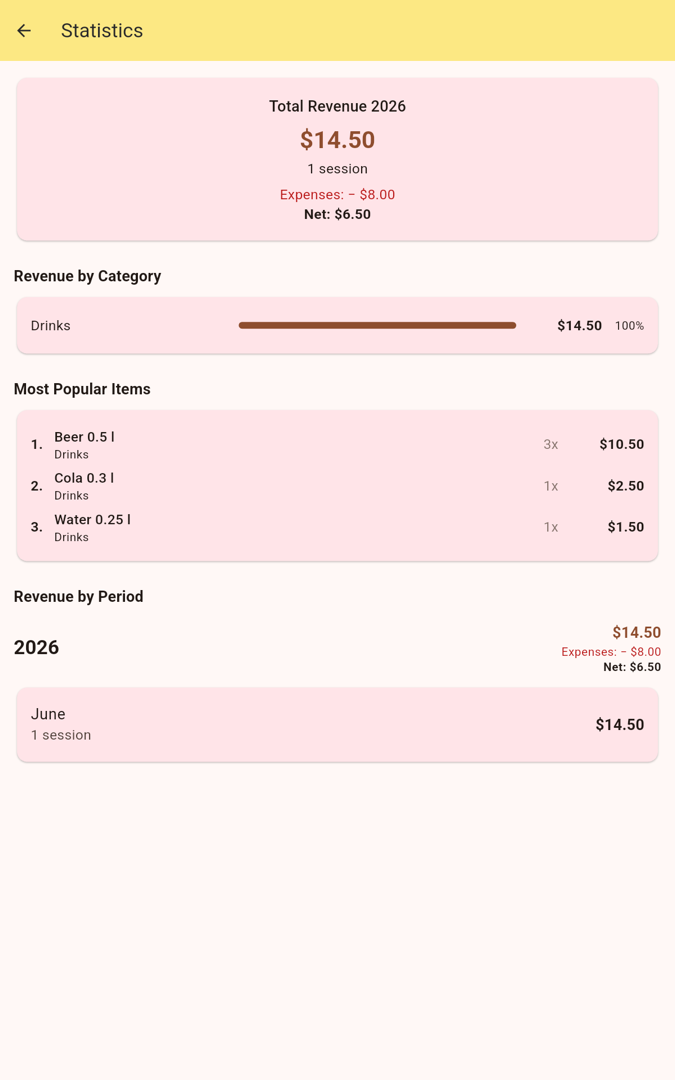
Statistics show Total Revenue (incl. expenses & net), Revenue by Category, the most popular items and Revenue by Period (year/month).
Statistics
Statistics

12Settings (currency & language)

Settings is where you manage the master data:
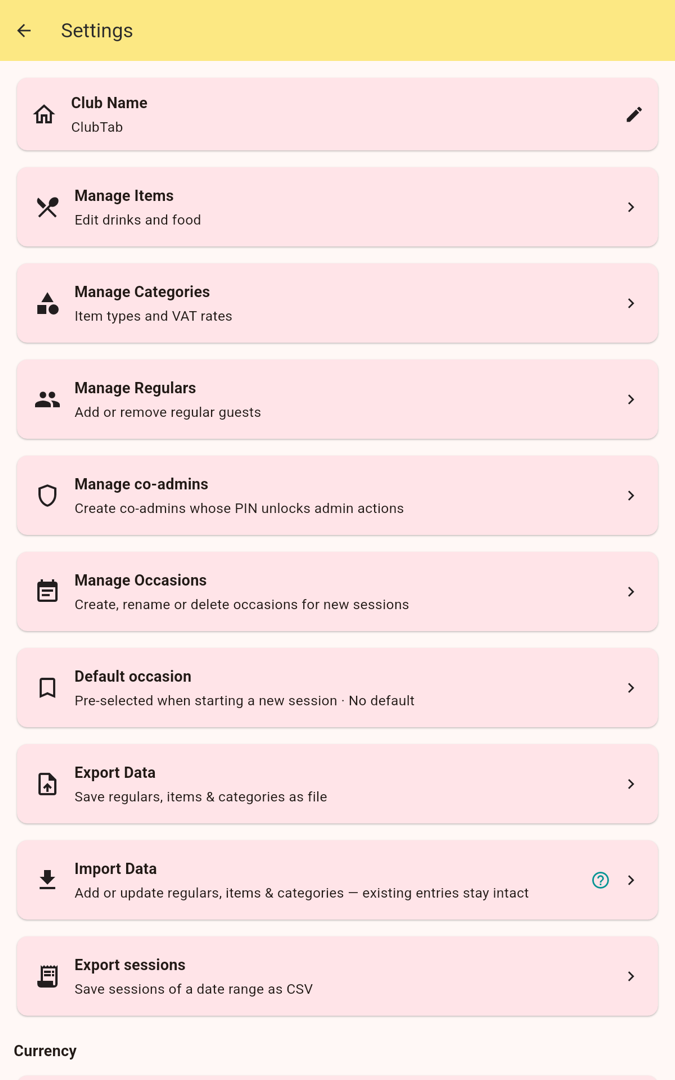
  • Club Name, Manage Items, Manage Categories (with VAT rates).
  • Manage Regulars and Manage Occasions.
  • Manage co-admins – their PIN unlocks admin actions.
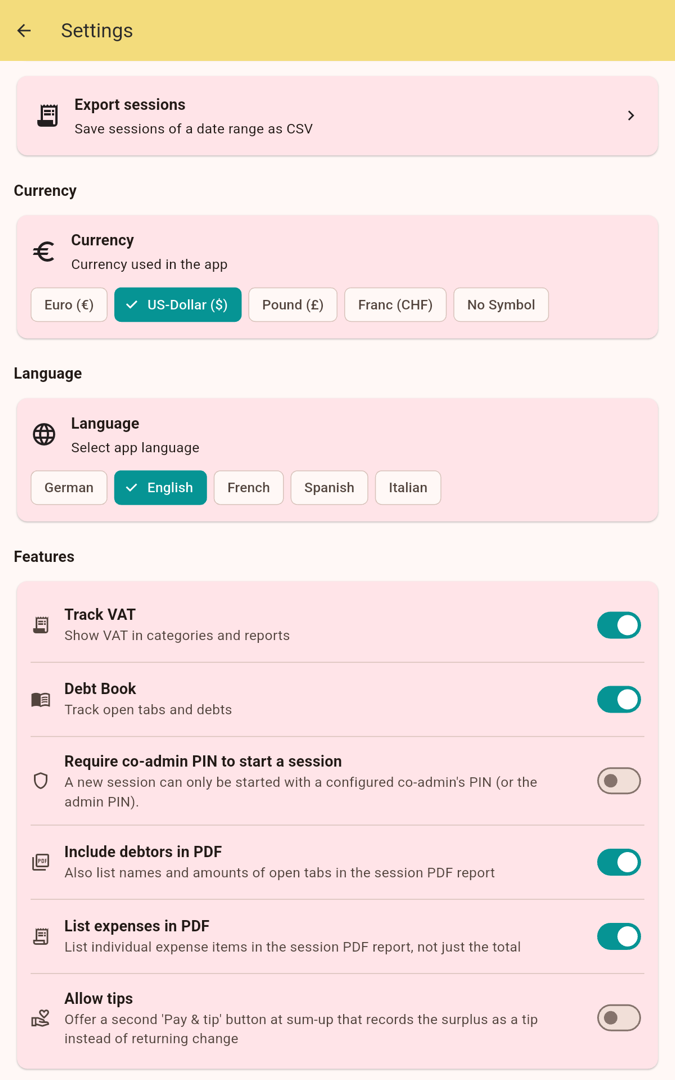
  • Export / Import Data and Export sessions (CSV of a date range).
  • Currency (e.g. US-Dollar ($)) and Language selectors.
Good to know: change the currency under Settings → Currency (e.g. US-Dollar) – it applies to every amount in the app, including the PDF report. “Co-admins” are co-administrators; their PIN unlocks protected actions, while the co-admin list itself needs the admin PIN.
Settings
Settings
Currency & language
Currency & language